
 Jordan Lee
 Husain Parvez
Tired of seeing region-locked content and throttled speeds? Changing your VPN location is the key to accessing global content, enhancing security, and improving your browsing freedom. As a long-time SaaS analyst, I guide my readers through the nuances of VPN control with tested accuracy and expert insight. This guide focuses on safely modifying VPN locations across devices and platforms. VPN flexibility is growing as privacy and accessibility become non-negotiable in digital life.
Changing your VPN location should be easy, but selecting the right method is where expertise matters. After spending over 100 hours reviewing 40+ services, I created this must-see guide filled with credible tips and unbiased insights. I recall using a free VPN tool on-site at a client review, which highlighted its hidden limits. Here, you will find a safe, handpicked list of trusted options with tested features and honest pricing guidance.
How to change your VPN location
Changing your VPN location helps access region-locked content, improve security, or test geo-specific services. As someone who’s worked with VPNs for decades, I can say the steps are simple but must be done right.
On Windows:
- Open your VPN app (e.g., NordVPN, ExpressVPN).
- Sign in and go to the server list or map.
- Click on the country or city you want to connect to.
- The app will auto-connect to that location. You’ll see a new IP address reflecting your chosen region.
On Mac:
- Launch your VPN client.
- Select ‘Locations’ or use the search bar.
- Choose a specific country or server.
- Click “Connect” or toggle the switch. Some apps also show latency to help you pick the fastest server.
On Linux:
- Open Terminal.
- Use commands like
openvpn --config filename.ovpnfor OpenVPN users. - Files must match the server location you want.
- Some apps like ProtonVPN CLI let you type protonvpn connect and choose a country code.
I always recommend reconnecting to a few servers if speed is slow. Also, verify your IP after connection using a site like “whatismyip.com” to ensure it’s working correctly. This small check avoids bigger issues later.
Why change my online location and IP address?
Changing your online location and IP address with a VPN is more than just a privacy move. It serves practical and important purposes—especially in today’s connected world. Over my years working with VPN tools, I’ve seen how impactful this simple action can be.
Here’s why it matters:
- Access Region-Blocked Content
Some websites, videos, or apps are only available in certain countries. By switching your IP to that country, you can view them as if you’re there. - Protect Your Privacy
Your IP reveals your physical location. Changing it hides your real location from websites, advertisers, and trackers. - Secure Public Wi-Fi Use
Public networks are risky. A VPN with a new IP adds a layer of protection that helps avoid snooping or data theft. - Avoid Price Discrimination
Some platforms show different prices based on your region. Changing locations might reveal better deals. - Test Location-Based Features
Developers and marketers often need to simulate how services work in other countries. A VPN makes this possible in seconds.
How to use a VPN to change location
Using a VPN to change your location is simple and effective. It allows you to appear online as if you’re in another city or country. This can help you access different content, improve privacy, or work securely while traveling. I often rely on this feature when I’m abroad or need access to location-specific services.
Here’s how you can do it:
Step-by-Step Guide:
- Choose a Trusted VPN Provider
Pick a reliable VPN with global servers. Some well-known ones are NordVPN, ExpressVPN, or ProtonVPN. - Install the VPN App
Download the app for your device—Windows, Mac, Android, iOS, or Linux. - Log in to the App
Open the VPN and sign in with your account details. - Select a Server Location
Most apps offer a list or map. Choose the country or city you want your new IP to show. - Click Connect
Once connected, your IP address will change to reflect the selected location. - Verify Your IP
Visit a site like whatismyip.com to confirm the change.
How to confirm your VPN location has changed
After connecting to a VPN, it’s important to confirm that your location and IP address have actually changed. This helps ensure your data is protected and you’re accessing content from the right region. I always take a few seconds to check my connection, especially when using public Wi-Fi or streaming geo-blocked content.
Simple Ways to Confirm Your VPN Location:
- Check Your IP Address
Visit websites like whatismyipaddress.com or iplocation.net. These show your current IP and its country. If it reflects the location you selected in your VPN app, you’re good to go. - Use the VPN App’s Built-In Info
Most VPNs display your connected server and virtual IP. This quick view often confirms your location status without needing extra tools. - Try Region-Based Websites
Open a website or app that’s only available in a specific country. For example, connect to a UK server and try accessing BBC iPlayer. If it loads without error, your VPN is working. - Check DNS Leaks
Use tools like dnsleaktest.com to ensure your real location isn’t exposed.
Other methods to change your location
Changing your location online isn’t limited to VPNs. There are other ways that can serve different needs—some simpler, others more technical. I’ve seen users benefit from combining these methods based on what they want to achieve, whether it’s privacy, streaming access, or web testing.
Alternative Methods to Change Your Online Location:
- Proxy Servers
Proxies route your traffic through another server. Unlike VPNs, they usually don’t encrypt your data. They can help bypass geo-restrictions but offer weaker security. - Smart DNS Services
Smart DNS tools change your device’s DNS settings to make it appear you’re in another region. These are great for streaming but don’t hide your IP or encrypt your connection. - Tor Browser
Tor routes your traffic through multiple nodes globally. It changes your IP address and provides strong anonymity. However, it can be much slower and not suitable for streaming. - Manually Setting a Static IP (Advanced Users)
Some advanced setups allow you to assign a static IP from another region. This is complex and usually requires working with a third-party service.
When I need extra speed for streaming, I sometimes use Smart DNS instead of a VPN. Choosing the right method depends on your goal—speed, security, or content access.
How to control location access in your apps
Even with a VPN, apps on your device can still collect your real location if permissions aren’t managed. Controlling location access gives you better privacy and helps avoid leaks of sensitive data. I always review app permissions on my devices to ensure only trusted apps know my location.
Here’s how to take control:
On Android:
- Go to Settings > Location.
- Tap App Location Permissions.
- Choose each app and select Allow only while using, Ask every time, or Deny.
- Disable Wi-Fi and Bluetooth scanning under advanced settings to reduce passive tracking.
On iOS (iPhone/iPad):
- Open Settings > Privacy & Security > Location Services.
- Tap any app to adjust its access: Never, Ask Next Time, or While Using the App.
- You can also toggle Precise Location off if you want apps to get a rough location only.
Bonus Tip:
Some apps use GPS, Wi-Fi, or Bluetooth together. Turning off one method may not stop all tracking. A VPN masks your IP but managing these settings strengthens your privacy even more.
By limiting app-level access, you reduce unwanted tracking and gain more control over your digital footprint.
How to improve or disable location accuracy
Even if you’re using a VPN, your device may still track your physical location using GPS, Wi-Fi, or Bluetooth. That’s why it’s important to understand how to improve or turn off location accuracy. I usually adjust these settings when I want stronger privacy or to make sure my VPN works without interference.
How to Improve Location Accuracy:
On Android:
- Go to Settings > Location.
- Tap Location Services > Google Location Accuracy.
- Turn it On to let apps use Wi-Fi, mobile networks, and sensors for better precision.
This is useful for maps or ride-hailing apps where exact location matters.
On iPhone (iOS):
- Open Settings > Privacy & Security > Location Services.
- Tap System Services.
- Enable Wi-Fi Networking and Bluetooth for improved accuracy.
How to Disable or Limit Location Accuracy:
- Android: Go to Settings > Location > Location Services and turn off Google Location Accuracy.
- iOS: Toggle off Precise Location for selected apps under Location Services.
Reducing accuracy helps protect your privacy. But it may impact navigation and app performance. I recommend adjusting these based on what matters more—convenience or control over your data.
Troubleshooting location-changing issues
Sometimes, even after connecting to a VPN, your actual location still shows up. This can happen due to several common issues. As someone who has worked with VPNs across different platforms, I’ve seen how frustrating this can be. But most problems have quick fixes.
Common Issues and Fixes:
- Browser or App Caching Location
Some apps or websites use cached location data. Clear your browser cookies or app cache and restart the app. - GPS Still Active
Devices with GPS can override your VPN location. Turn off location services or set app permissions to “deny” for location access. - DNS Leaks
If your DNS requests are leaking, sites may detect your real region. Use a VPN with built-in DNS leak protection or test it using dnsleaktest.com. - WebRTC Leaks in Browser
WebRTC can reveal your IP. Disable WebRTC in your browser settings or use a privacy extension to block it. - Server Issues
Sometimes the VPN server is overloaded or misconfigured. Try switching to a different server in the same country.
Tips for changing your location with a VPN
Changing your location with a VPN can be smooth if you follow a few smart practices. Over the years, I’ve helped many users get better results just by tweaking their VPN usage. A simple connection isn’t always enough—how you use it makes a big difference.
Helpful Tips to Make Location Changes More Effective:
- Choose the Right Server
Always select a server close to your target location. For example, if you want UK content, pick a London server rather than a random UK node. This improves both accuracy and speed. - Clear Cache and Cookies
Websites may store your real location in cookies. Clear them before and after switching your VPN location to avoid mismatches. - Disable GPS and Location Services
Apps can bypass VPNs using GPS. Turn off location access in your device settings for better privacy control. - Use DNS and WebRTC Leak Protection
Some browsers reveal your IP through DNS or WebRTC. Choose a VPN with built-in protection or use browser extensions that block leaks. - Reconnect If Needed
If a site still detects your real region, disconnect and connect to another server in the same country.
Best VPNs
1) ExpressVPN

ExpressVPN impressed me with its seamless interface and quick connectivity. During my analysis, I found that switching locations is one of the easiest ways to browse securely and access global content. It is best for users who aim to stay anonymous online while maintaining speed. ExpressVPN allows you to connect multiple devices effortlessly, making it a superior choice for families or professionals. Case Study: Freelancers often rely on ExpressVPN to safely connect with clients across borders without compromising privacy or performance.
30-Days Money-back Guarantee
2) NordVPN

NordVPN offered me an excellent experience while testing it for this article. I particularly liked how it allows you to switch between countries effortlessly and maintain a stable connection. It is a top choice for anyone aiming to enhance privacy and speed online. It might be helpful to know that NordVPN also supports multiple devices under one plan. Case Study: Digital marketers often use NordVPN to analyze region-based search trends and ads, improving their global campaign strategies and outreach results.
30-Days Money-back Guarantee
3) FastestVPN

FastestVPN allowed me to enjoy seamless VPN location changes with excellent speed consistency. As I evaluated the tool, I found that it offers one of the most cost-effective solutions for users seeking both privacy and affordability. It is important to consider this service if you value lifetime access without recurring payments. Its intuitive design makes it easy to operate. Case Study: Digital marketers use FastestVPN to test geo-targeted ads and content performance across different countries, improving campaign reach and audience engagement.
31-Days Money-back Guarantee
4) Private Internet Access

Private Internet Access (PIA) is an advanced yet easy-to-use VPN that I reviewed recently. It helped me access different server locations effortlessly and avoid online tracking with its built-in ad blocker. In my experience, it is one of the easiest VPNs to set up, even for beginners. Make sure you try its WireGuard protocol for faster speeds. Case Study: E-commerce professionals depend on PIA to monitor international pricing and competitor data safely, ensuring better insights and business growth opportunities.
30-Days Money-back Guarantee
5) Norton VPN

Norton VPN is an impressive and user-friendly tool that, in my opinion, provides one of the best ways to change VPN locations safely. Over the course of my evaluation, I noticed that it combines performance with robust encryption and device protection. It is a top choice for users who want privacy and simplicity in one package. Keep in mind, it also includes parental controls and malware defense through Norton 360 Deluxe. Case Study: Small business owners rely on Norton VPN to manage online transactions securely while handling sensitive customer data from multiple locations.
14-Days Free Trial
How Did We Choose Best VPNs?
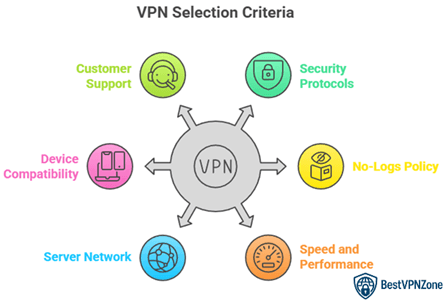
At BestVPNZone, we are committed to delivering trustworthy, accurate, and up-to-date content that helps users make informed decisions. Changing your VPN location should be simple, but choosing the right tool is essential for privacy and performance. Our team has spent over 100 hours evaluating more than 40 VPN services to ensure you receive only expert-approved and credible guidance. We provide a handpicked list of reliable tools with tested features and transparent pricing to avoid unexpected issues. VPNs remain essential for secure global access and data protection. We focus on the following factors while reviewing a tool based on
- Security Protocols: We chose based on the use of AES-256 encryption and secure tunneling technologies like WireGuard.
- No-Logs Policy: Our team shortlisted VPNs with independently audited no-logs policies to ensure strict user privacy.
- Speed and Performance: The experts in our team selected the tools based on ultra-responsive speeds and consistent streaming capabilities.
- Server Network: We made sure to shortlist providers offering large, globally-distributed servers optimized for efficiency and low latency.
- Device Compatibility: We chose based on support for all major platforms with hassle-free setup and adaptable configurations for all users.
- Customer Support: Our team picked options offering reliable 24/7 live chat support to help you resolve issues rapidly and smoothly.
Is it legal to use a VPN?
Yes, using a VPN is legal in most countries. A VPN (Virtual Private Network) is a tool that helps protect your online privacy and security. It changes your IP address and encrypts your internet traffic. Many people use VPNs to stay safe on public Wi-Fi or to access content while traveling. I personally use it while working remotely to ensure secure and private browsing.
Where VPNs Are Legal:
- In countries like the United States, Canada, the UK, Australia, and most of Europe, VPNs are fully legal. They are widely used by businesses and individuals.
- VPNs are also used for accessing remote work networks and protecting sensitive information.
Where VPN Use May Be Restricted or Banned:
- China, North Korea, Russia, Iran, and the UAE have strict rules around VPNs. Some require government-approved services. In these places, using an unapproved VPN could lead to fines or legal issues.
What Matters Is the Intent:
Using a VPN is legal, but what you do with it matters. If someone uses a VPN to break laws (like hacking or illegal streaming), that activity remains illegal—even with a VPN.
So, the VPN itself is not the problem. It’s how it’s used that defines what’s legal or not.
Conclusion
Changing my VPN location has always been a reliable way to maintain privacy, access region-restricted content, and secure browsing sessions. I often switch locations to test streaming availability, website localization, or enhance online safety. If you want to know the best way to do it, check my verdict below.
- Manual Server Selection: It allows choosing from a list of countries, offering remarkable flexibility for specific regional access.
- Smart Location Feature: This automatically connects to the nearest and most reliable server, ensuring a superior choice for streaming or gaming.
- Dedicated IP Option: It provides a secure, stable connection ideal for business or banking access without triggering security blocks.